POS
Here are the steps to update to the latest version:
First method
Step 1: After logging into your account, an update prompt will appear.
Step 2: Please click Update.
Step 3: Once the update is completed, you will be prompted to enable “Install unknown apps” permission.
Step 4: Then click Install. After installation is completed, please open the app.
Second method
Step 1: If you are already inside the account, please click the three horizontal lines (menu) at the top left.
Step 2: At the bottom, you will find “Check for updates”.
Step 3: Click Check for updates, and the update page will appear.
Step 4: On the update page, click Check for updates again to start downloading the latest version.
Step 5: After the update is completed, you will be prompted to enable “Install unknown apps” permission.
Step 6: Then click Install. Once completed, please open the app.
第一种方法
步骤一: 登录您的账号后,会出现更新提示界面。
步骤二: 请点击“更新”。
步骤三: 更新完成后,会提示需要开启“安装未知来源应用(Install unknown apps)”的权限。
步骤四: 随后点击“安装(Install)”,完成后请打开APP。
第二种方法
步骤一: 如果您已经在账号内,请点击左上角的“三条横线”菜单。
步骤二: 在下方找到并点击“检查更新(Check for updates)”。
步骤三: 点击后会进入更新页面。
步骤四: 在更新页面再次点击“检查更新”,系统将开始下载最新版本。
步骤五: 更新完成后,会提示需要开启“安装未知来源应用(Install unknown apps)”的权限。
步骤六: 随后点击“安装(Install)”,完成后请打开APP。
KIOSK
For Kiosk simply:
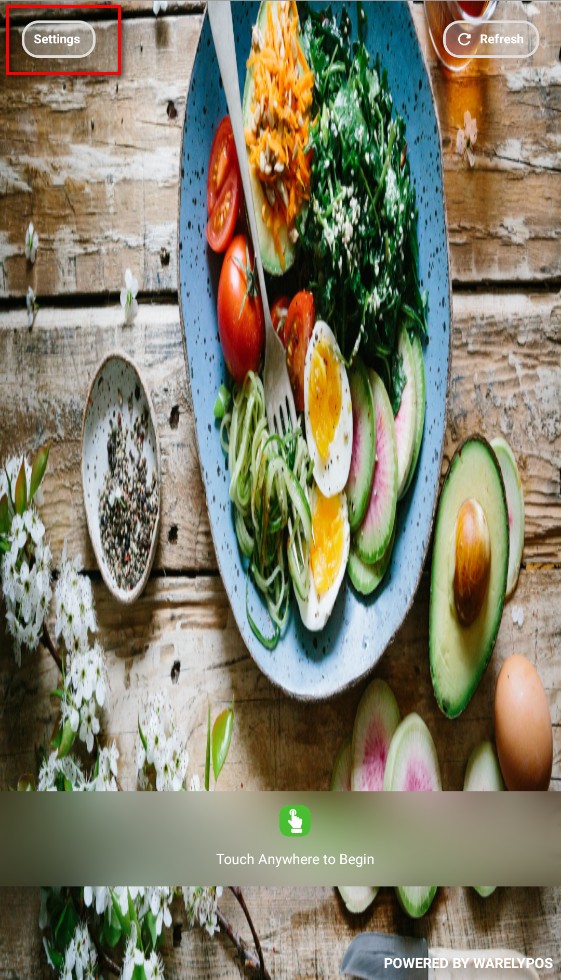
Step 1: Go to the Settings (located at top left of the KIOSK home screen)
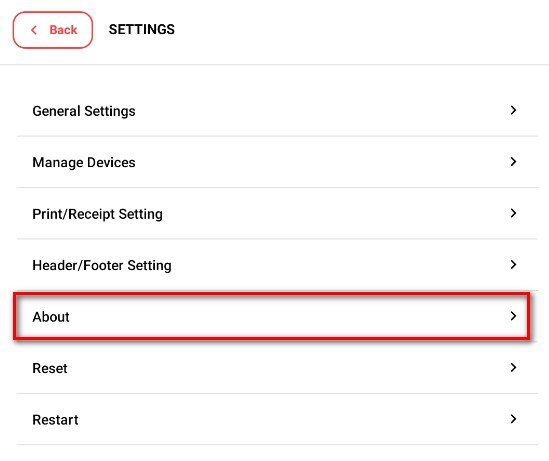
Step 2: Go to "About"
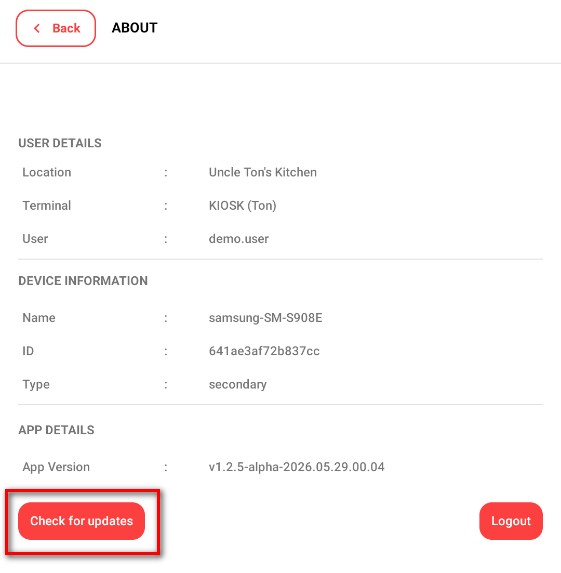
Step 3: Click on "Check for Updates"
Step 4: When the Version Update screen's button is indicating "UPDATE NOW".
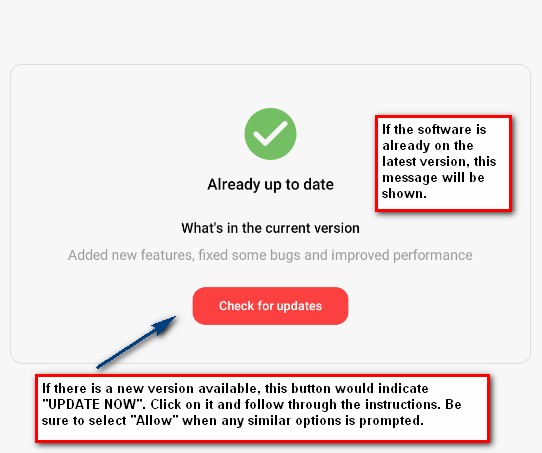
Step 5: In order to perform a version upgrade, click on the "UPDATE NOW" button and follow through the instructions.
Step 6: Note that, there may be prompt to ask for allowing access to system's file/images, etc. Please ensure this is "Allowed" to avoid any potential issue.
How do I check if the software version is up-to-date?
For both POS/KIOSK devices, this can be checked through:
Step 1: Go to the "Settings"
Step 2: Got to the "About" section. Take a screenshot of this "About" screen which highlights the version that is currently installed in the system. Following is a sample of the "About" screen as a reference where it is applicable to both POS and KIOSK.
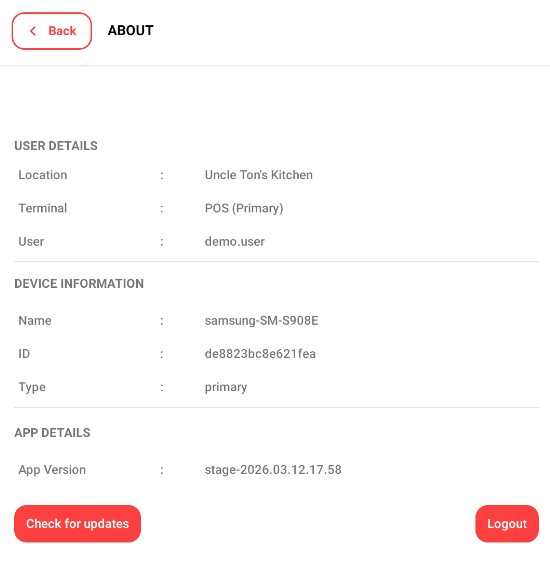
Step 3: Click on "Check for updates"
Step 4: With the version upgrade page.
Step 5: If the message indicating "Already up to date", this indicate the software is already on the latest version.
Step 6: In the case if a newer version is available, the "UPDATE NOW" button will be shown instead.