How to Use the Queue Management Feature on POS
Generate a Queue Management Registration QR Code
First, you need to generate a Queue Management QR code for customers to scan and register.
Step 1
Log in to the Backend.
Step 2
Go to Settings.
Step 3
Click Generate QR & Links.
Step 4
Select the desired Business Location, then choose Queue Registration under URL Type.
Step 5
A QR code will be generated on the right-hand side. You may print and display this QR code for customers to scan.
Customer Queue Registration
After scanning the QR code, customers can register by following these steps:
Step 1
Enter their mobile phone number.
Step 2
Fill in their name and the number of guests.
Step 3
Click Submit.
Step 4
The customer will receive an SMS from Warely and can click the link to view their queue details.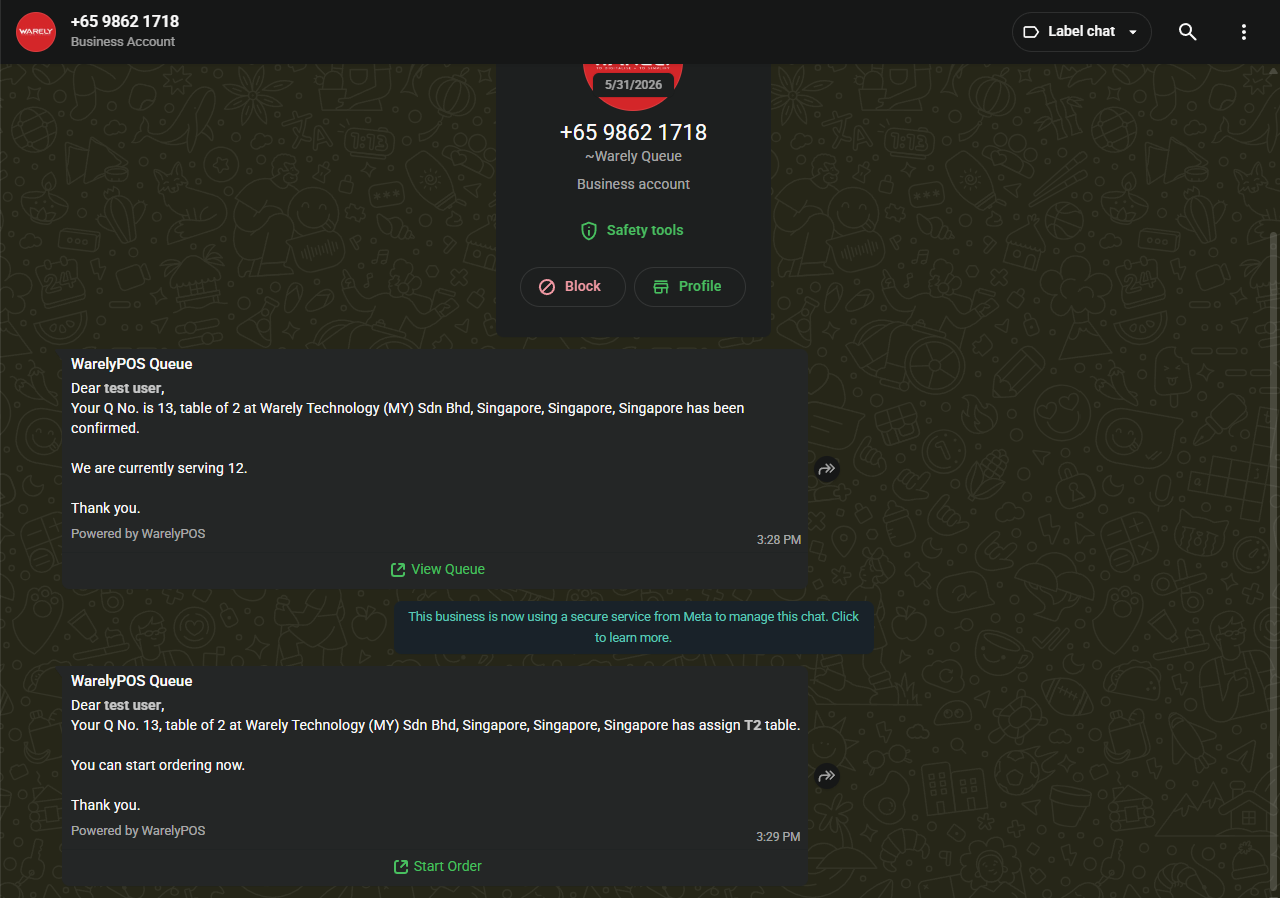
Notify Customers from POS
When a table becomes available, staff can notify customers through the POS.
Step 1
In the Dine In module on the POS, click the Queue button located at the bottom left corner.
Step 2
All registered customers in the queue will be displayed.
Select the customer's phone number, click Call, and assign the customer to an available table.
Step 3
The customer will receive an SMS notification from Warely informing them that their table is ready.
The SMS will also contain a Start Order link, allowing the customer to place an order directly from their mobile device.
如何在 POS 上使用 Queue Management 功能
生成 Queue Management 注册二维码
首先,我们需要生成一个 Queue Management 二维码供顾客扫描注册。
步骤 1
登录 Backend。
步骤 2
进入 Settings 页面。
步骤 3
点击 Generate QR & Links。
步骤 4
选择对应的 Business Location,然后在 URL Type 中选择 Queue Registration。
步骤 5
系统会在右侧生成二维码,您可以将其打印出来供顾客扫描使用。
顾客注册 Queue
当顾客扫描二维码后,可按照以下步骤完成注册:
步骤 1
输入手机号码。
步骤 2
填写姓名及同行人数。
步骤 3
点击 Submit 提交。
步骤 4
顾客将收到由 Warely 发送的短信通知,并可点击查看排队详情。
在 POS 上通知顾客入座
当轮到顾客时,您可以通过 POS 发送通知。
步骤 1
在 POS 的 Dine In 模块中,点击左下角的 Queue 按钮。
步骤 2
系统将显示所有已注册排队的顾客名单。
选择需要通知的顾客号码,点击 Call,然后安排顾客到对应的桌位。
步骤 3
顾客将收到由 Warely 发送的短信通知,告知其可以前来入座。
顾客也可以通过短信中的链接点击 Start Order,直接在手机上进行点餐。