ISSUE
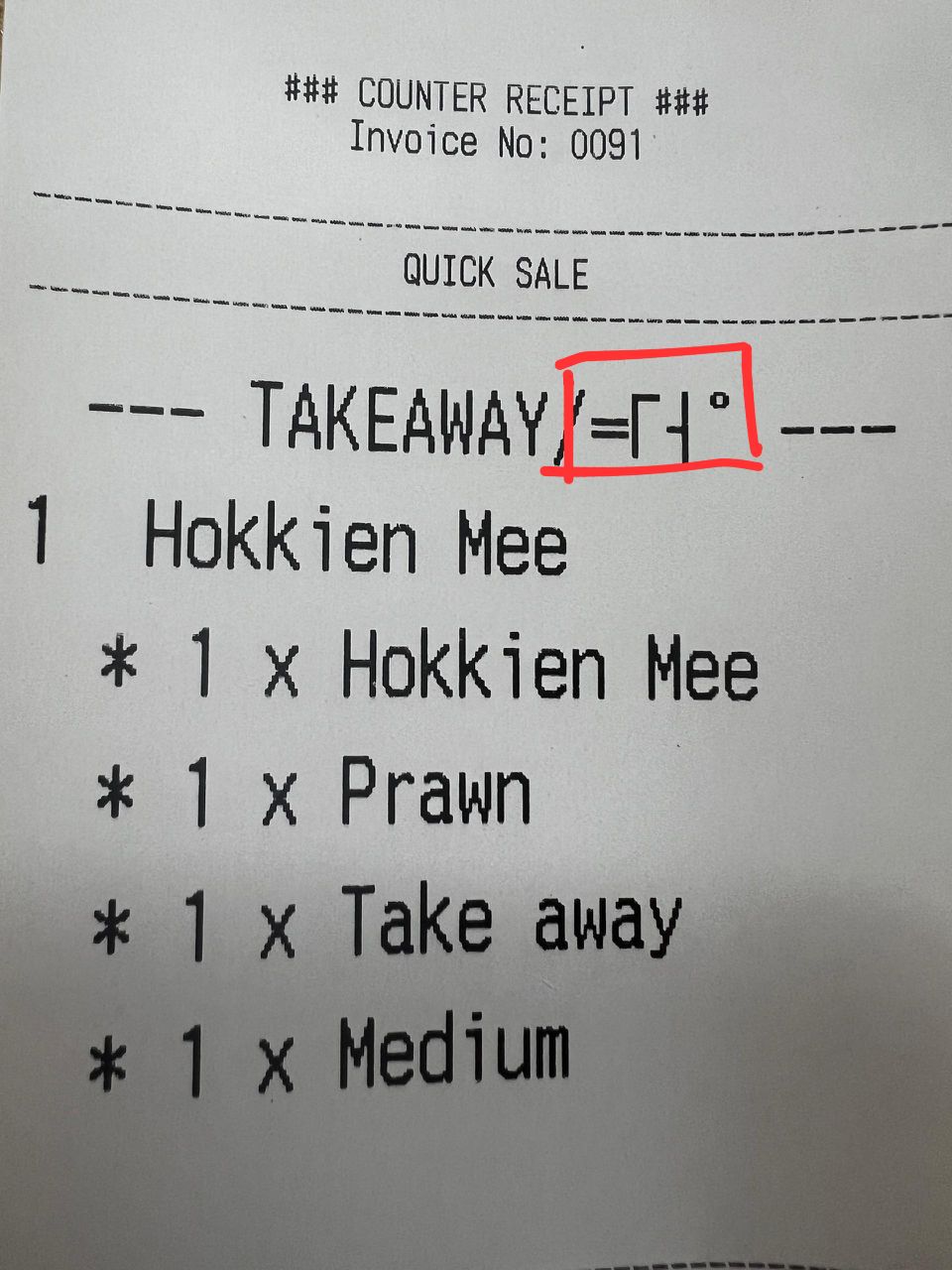
Printed receipt showing weird symbols when trying to print out Chinese words.
You will have to download drivers while the printer is connected to your PC/laptop
Below is the link to the printer drivers.
https://drive.google.com/file/d/1RTpjn8xxH26w6aekls7WH8rBnnO6ZpWC/view?usp=drive_link
SOLUTION
After opening the app, follow the correct port selection. If your printer is using USB to connect pick USB, if its using LAN to connect pick NET. Make sure its connected to your device, you can click the self-test to check if its connected, it should print out a test print receipt.
- Click Advanced > look for DIP settings from the left.
- In DIP Settings > look for Chinese mode switch to YES
- After done > Close the DIP tab> Click the return button from the advanced tabs bottom right.
- Close app when done.
That's how you fix the weird symbols when printing chinese words.
ISSUE
When test printing sometimes the printer won't stop printing
SOLUTION
- Turn off the printer with the button on the side > Pull out the receipt thats printed
- Turn the printer back on > Reconnect it on the POS. Done
----------------------------------------------------------------------------------------------------------
ISSUE
1. Receipt paper jammed at the printer output
2. The printed receipt shows no text
SOLUTION
1. Attempt to open the printer lid gently and clear any paper that may be stuck inside
2. Insert the paper into the printer correctly, when you correctly insert the paper, it should be facing backwards, just like Picture A. If it looks like Picture B, it means it's inserted wrong side
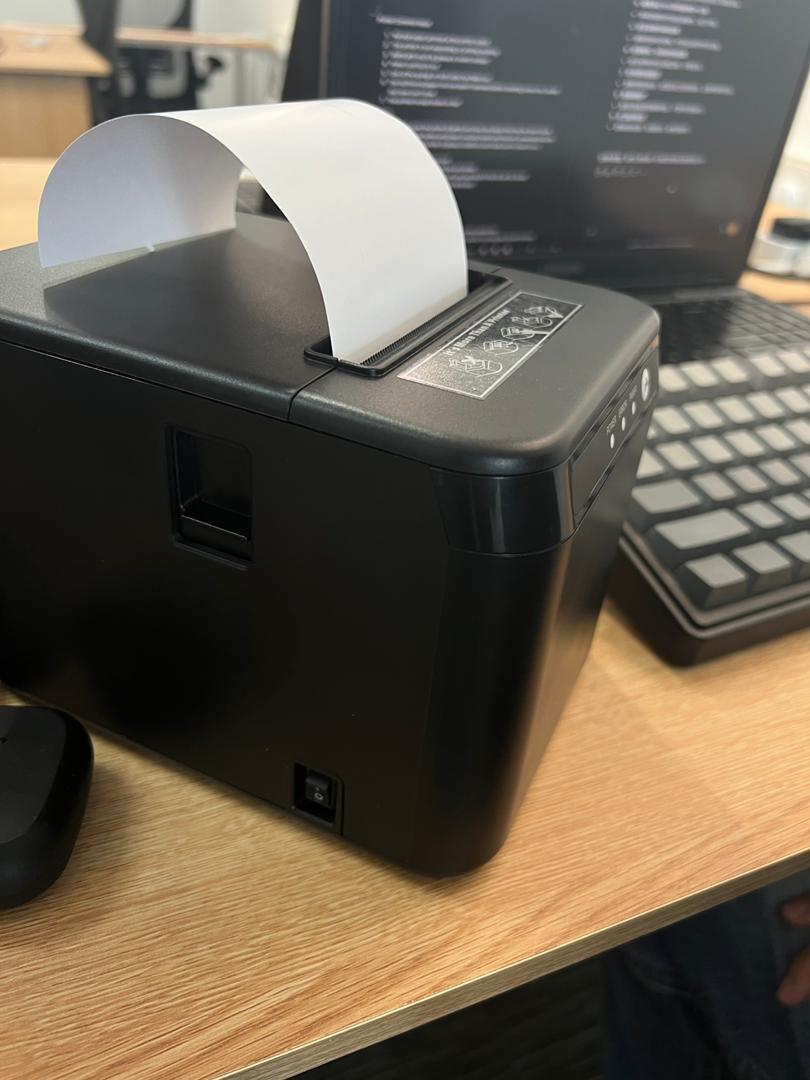
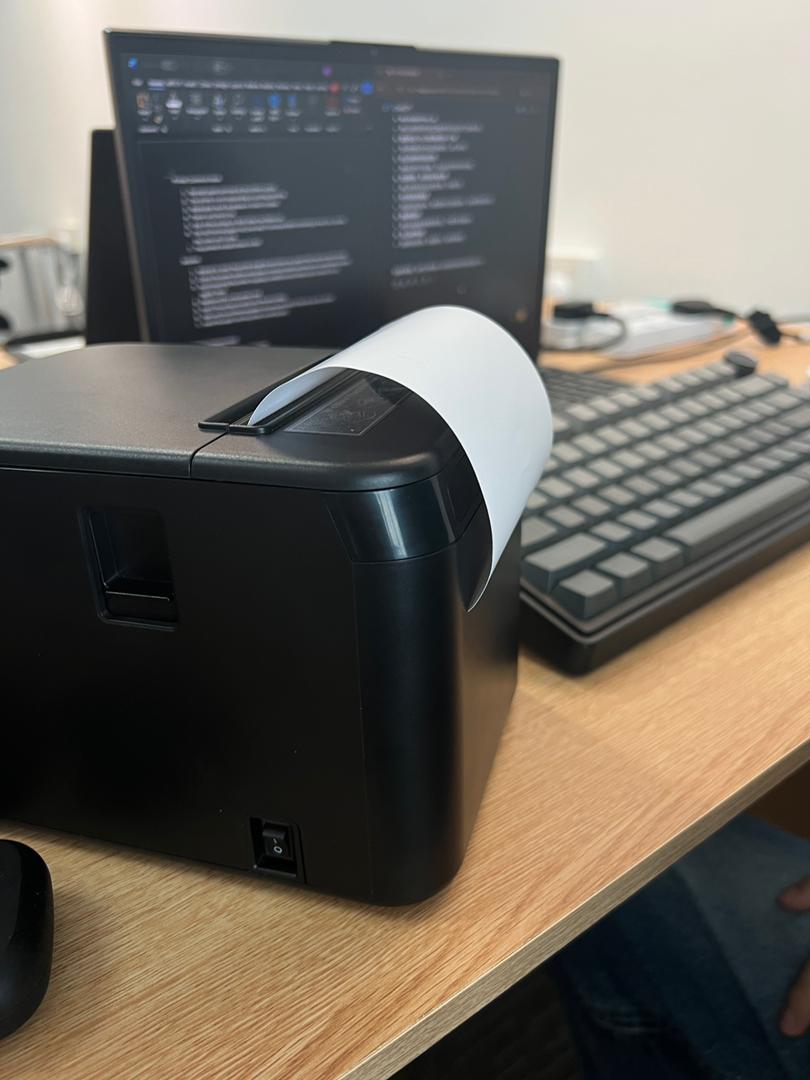
Picture A Picture B