When an issue occurs persistently in POS/KIOSK software, it would be helpful to the support team to review the detail logs. This may help the team to identify any potential code base that may have triggered the incident.
Following outlined the steps to enable and also to send the debug log (when the issue reoccur) to Warely Team.
POS
- Go to the Settings section available on the top left:
前往左上角的「Settings(设置)」页面: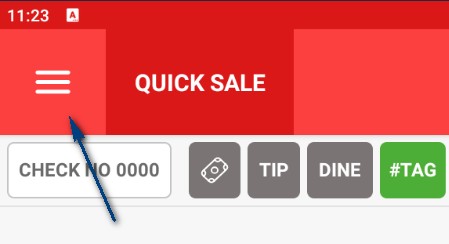
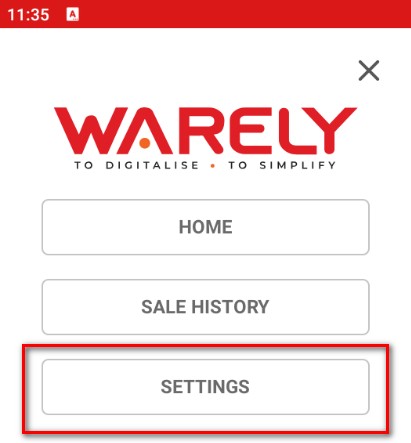
- On the "General" Section, locate the "Save Debug Mode" option and ensure it is turn "On".
NOTE: Do not press the "Send" button, not until the Debug log option is on and that the issue is reproducible.
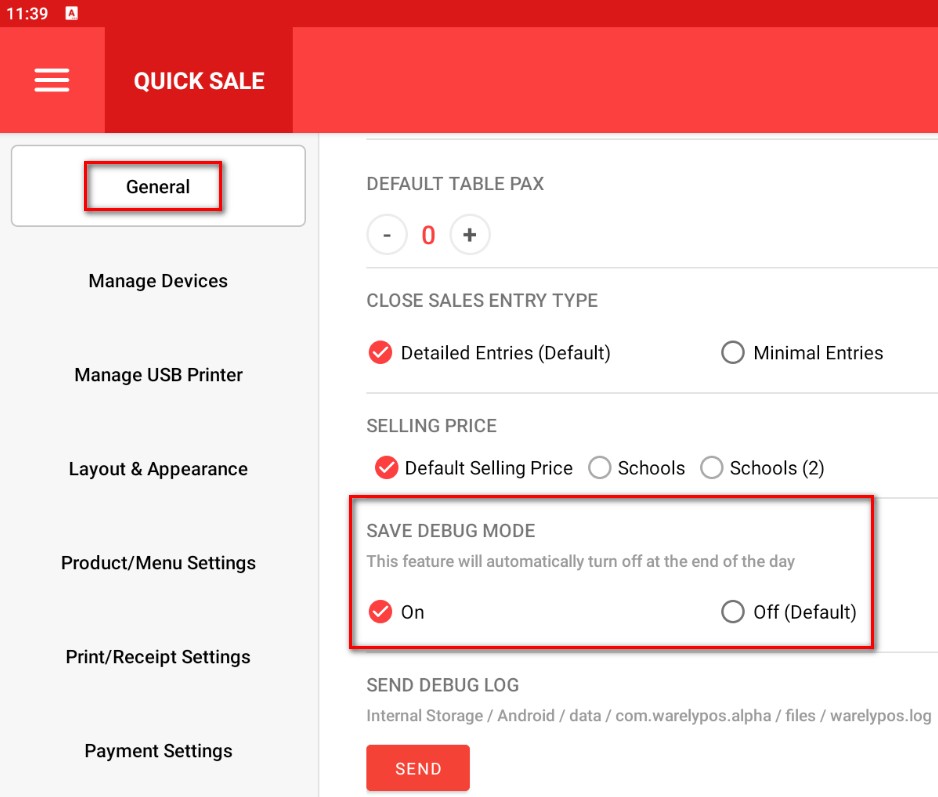
- Once the option is turn on, try reproducing the issue. When the issue is reproducible, revisit step #2 but hit on the "Send" button along the "Send Debug Log" option.
开启该选项后,请尝试重新重现该问题。
当问题成功重现后,请重新返回步骤 #2,并点击「Send Debug Log」旁边的「Send」按钮。
KIOSK
- Navigate back to the Home Page. Go to the Settings section available on the top left. Key in the correct pin.返回首页后,前往左上角的「Settings(设置)」页面,并输入正确的 PIN 码。
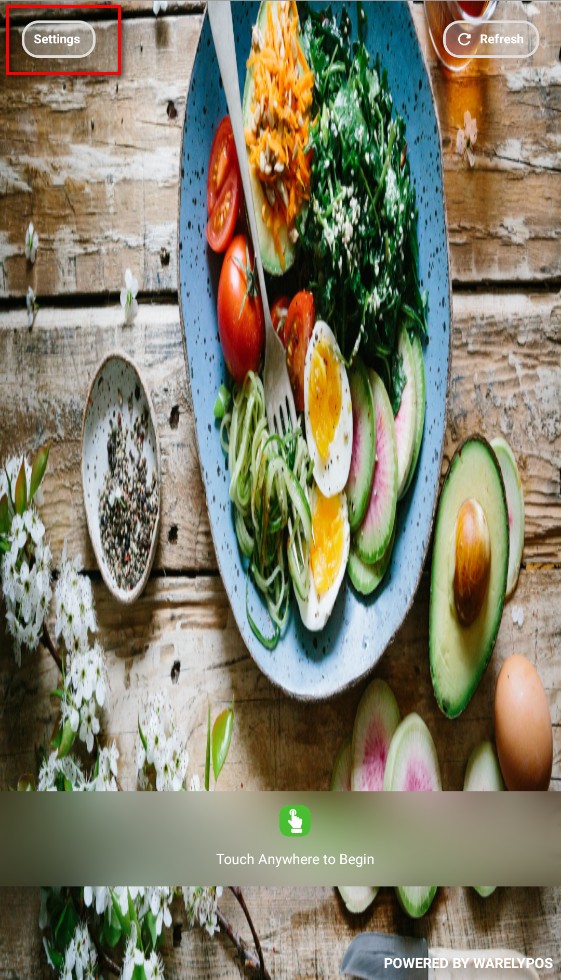
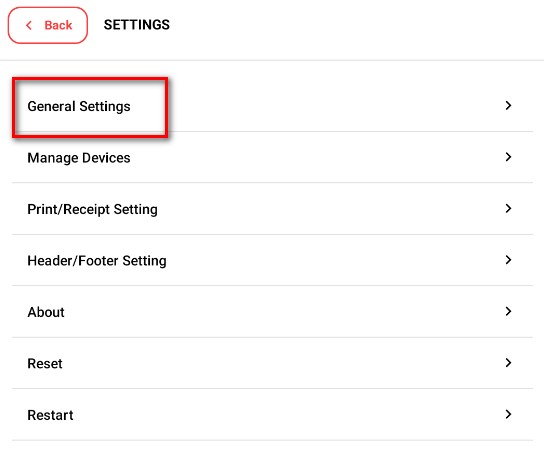
- Select the "General Settings" section instead. Locate the "Save Debug Mode" option and ensure it is turn "On".
NOTE: Do not press the "Send" button, not until the Debug log option is on and that the issue is reproducible.请选择「General Settings(常规设置)」页面。找到「Save Debug Mode」选项,并确保该选项已开启(On)。
注意:请勿立即点击「Send」按钮,需等到 Debug Log 选项已开启,并且问题可以再次重现后,再进行发送。
- Once the option is turn on, try reproducing the issue. When the issue is reproducible, revisit step #2 but hit on the "Send" button along the "Send Debug Log" option.