As mentioned before, Importing products is a crucial part in configuring the POS menu. Then what if i have more than 10 products to upload to the backend and the POS? We have a function called Bulk Import Products, where we provide an Excel forms for customers to write down the products, and bulk import into the system's backend and POS.

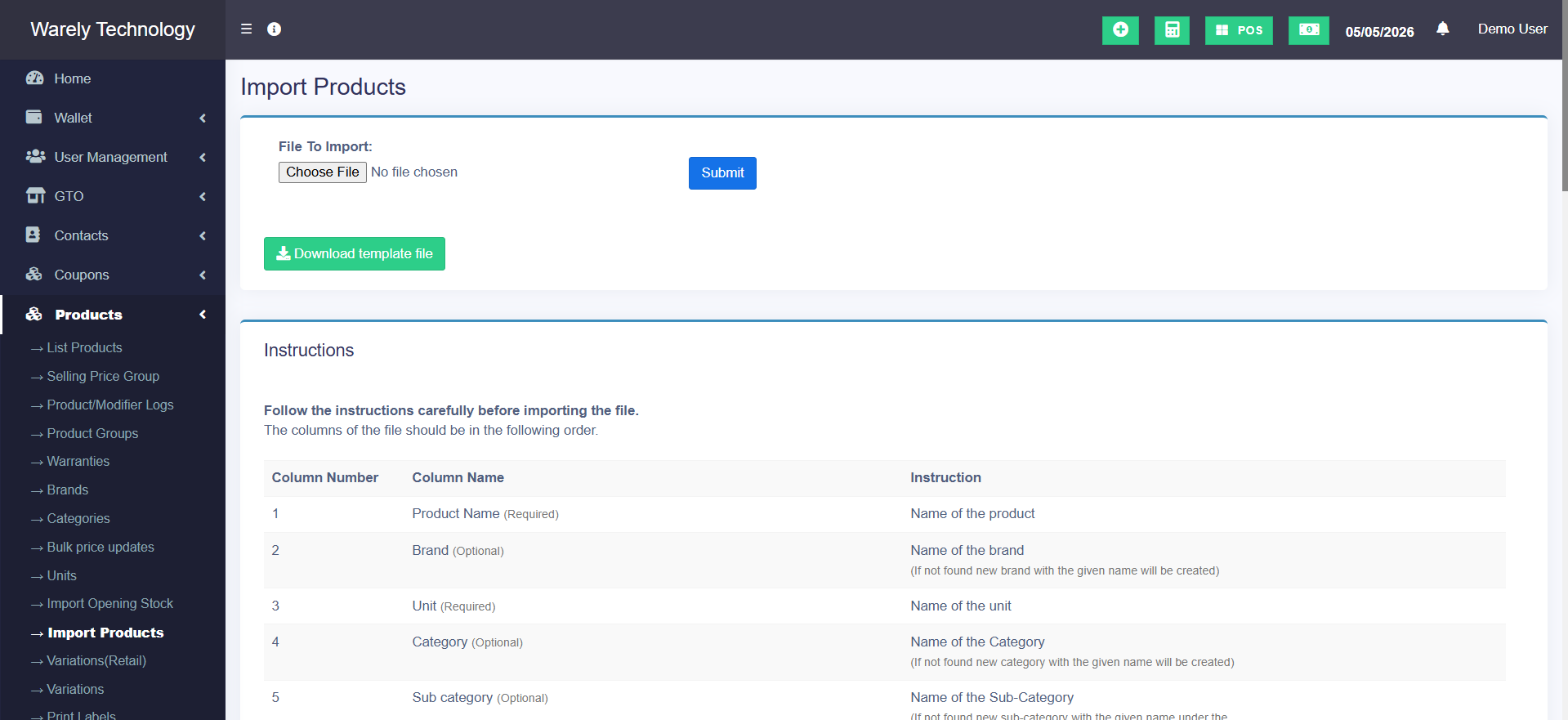
Above as attached is the page to bulk import products. Where customers can access at Products > Import Products. After that, you will be able to see the "Download Template File" as in a green download icon button. Kindly click on it and it will download a template file for you.

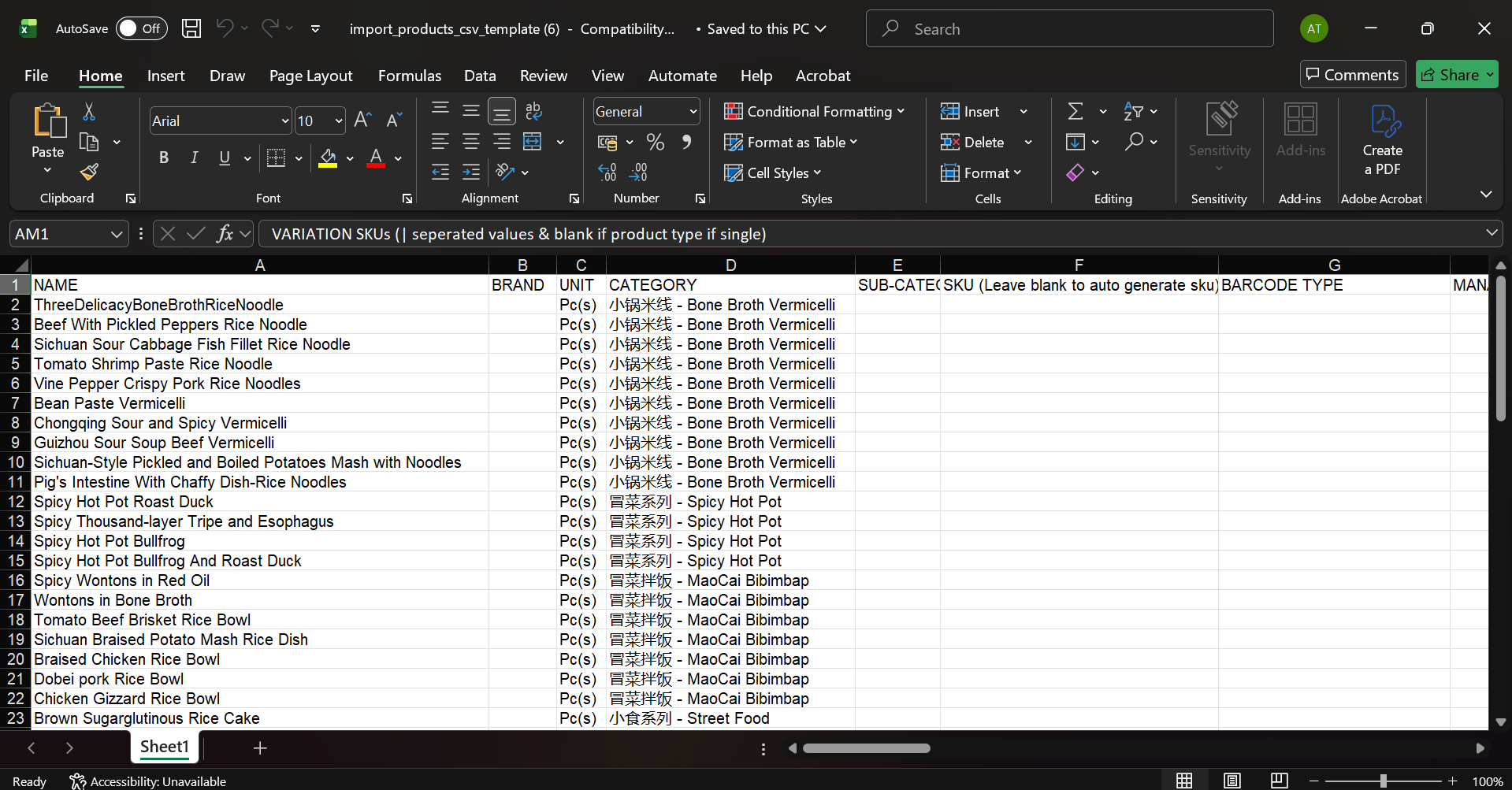
After downloading the template file, customer will be able to access this excel file. After opening the file, customer will be able to edit the items inside such as NAME, CATEGORY etc. Customers can put the product name, Category, Price, Unit. And when they perform an bulk Import, the backend system will automatically create the Category, names that has been written in the file.
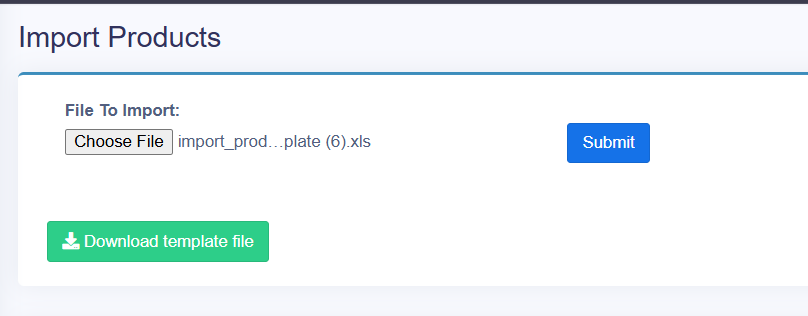
After finish importing the menu to the excel file, its time to bulk import the menu to the backend. By just an easy way. Go to the same place, Products > Import products. Inside, you will see the option to "Download template file" and "Choose File". Select the "Choose File" and choose the excel file that you just finished listing the menu. Then, click on "Submit". Then, the menu will be imported successfully.

Required columns to pay attention to:
-
Product Name
-
Unit
-
Manage Stock (1 = Yes, 0 = No)
-
Selling Price Tax Type
-
Product Type (usually
single) -
Purchase Price or Selling Price