After adding a product, you need to create a category for the product. For example, McDonalds Fillet O' Fish burger is located at Burgers, Fish. This is an example for category in certain product. Category is also a crucial part in this POS system.
Products > Categories
https://crmsystem.warelycorp.com/admin/knowledge_base/view/warelypos-backend-training-products-categories
I will be including a picture and step by step on how to add categories in the backend and how does the categories looks like in the POS system.

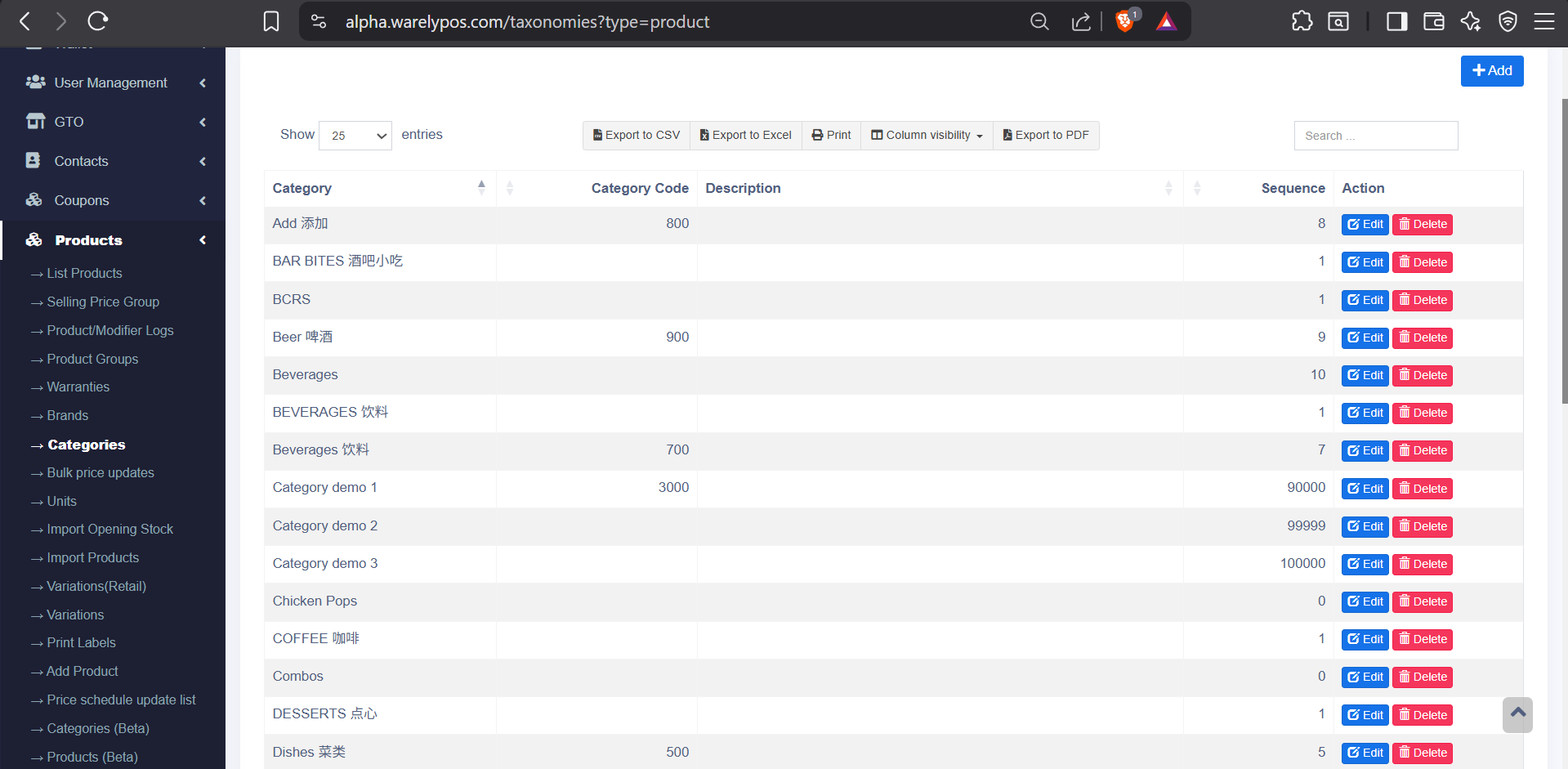
Above as attached is a picture on how does the backend for categories looks like. How do you toggle into this page is Products > Categories. And inside, you will be able to see different category as created. If you would like to open a new category, you could press the "+Add" button on the top right corner. After that, you will be redirected into this page.

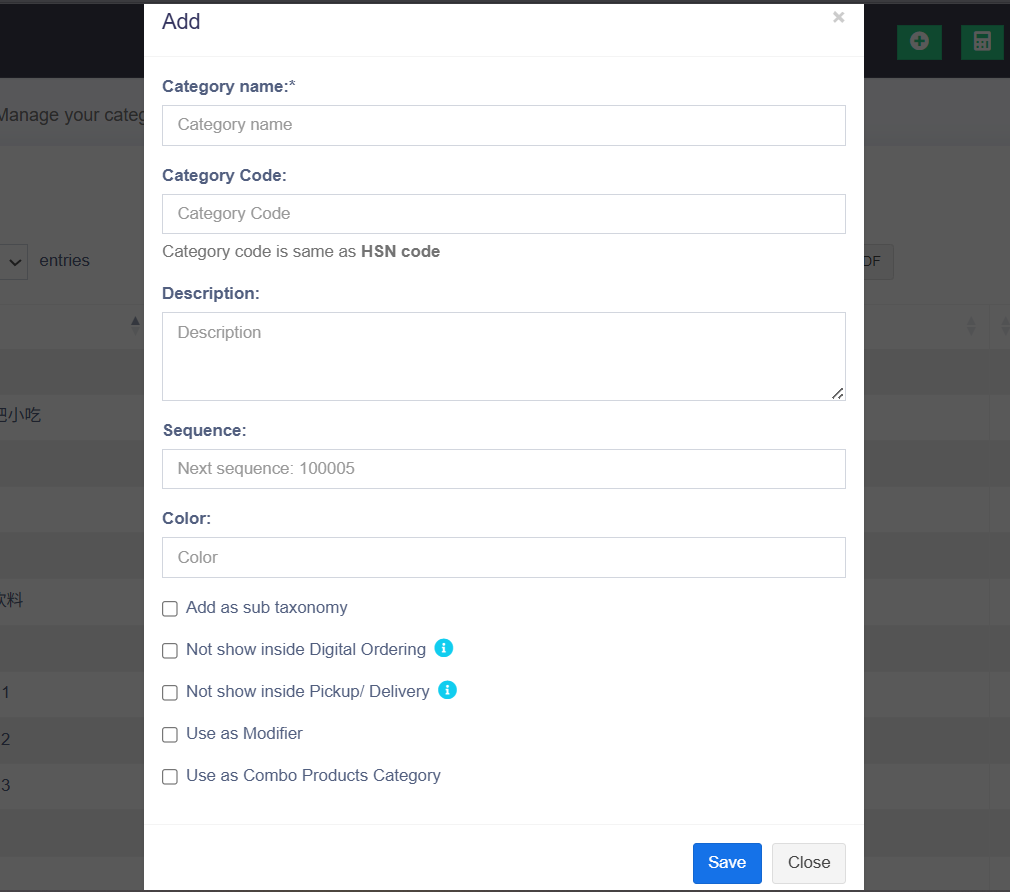
Above as attached is when you press the "+Add" button, you will see this page. Category name is to add what does the category named. Color is to make the buttons colored such as blue or red.
After adding a category, you will see something like this on your POS.

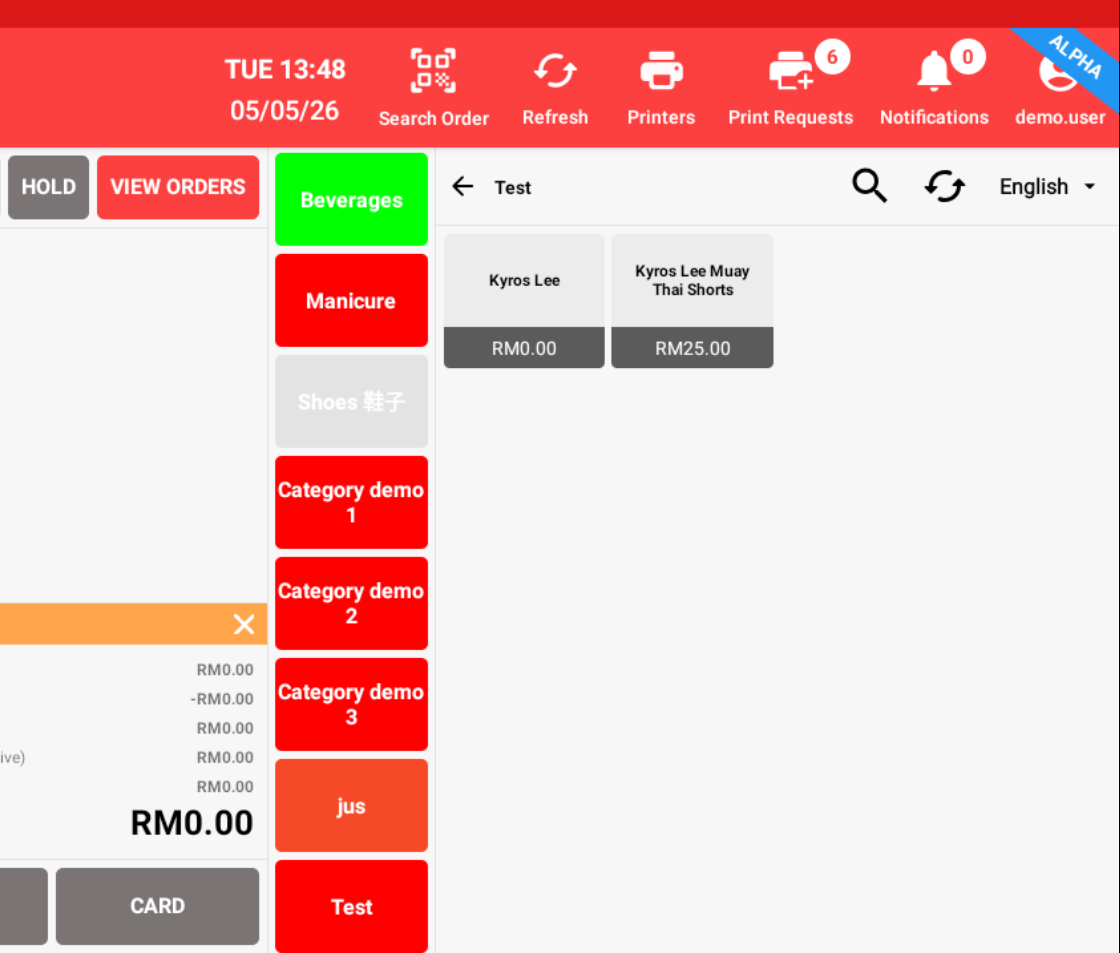
As you can see, the last red colored modifier named "Test" is successfully added. And inside the category, you can see the product that we created and we assigned it to the "Test" Modifier.
在添加产品后,您需要为该产品创建分类(Category)。
例如,McDonalds 的 Fillet O' Fish 汉堡可以被归类在 “Burgers” 和 “Fish” 分类中。这是产品分类(Category)的一个示例。
分类(Category)也是此 POS 系统中非常关键的一部分。
Products > Categories
WarelyPOS Products Categories 培训页面
我将附上图片以及一步一步的教学,说明如何在后台添加分类,以及分类在 POS 系统中的显示效果。
以上附图展示了后台分类(Categories)页面的样子。
进入该页面的方法为:
Products > Categories
进入后,您将能够看到已创建的不同分类。
如果您想新增一个分类,可以点击右上角的 “+Add” 按钮。点击后,系统将会跳转到以下页面。
以上附图展示的是点击 “+Add” 按钮后所看到的页面。
- Category Name:用于填写分类名称。
- Color:用于设置按钮颜色,例如蓝色或红色。
完成分类添加后,您的 POS 系统中将会显示类似以下的效果。
正如您所看到的,最后一个红色的分类按钮 “Test” 已成功添加。
在该分类中,您还可以看到我们之前创建的产品,并且已经被分配到 “Test” 分类中。